An electronic signature supplements an authenticated controlled action. It never grants permission, bypasses separation of duties, or allows arbitrary attachment to a record.
When a signature-enabled workflow presents a confirmation, Metra freezes the exact image revision, signer and membership, printed name and role, controlled statement and version, UTC time, record identity, action, and Metra-calculated SHA-256 content hash.
You must still hold the underlying action permission and may need to reauthenticate within the organisation's configured window. A required organisation policy applies only to workflows that have integrated signature attachment.
Organisation owners and administrators can choose whether supported controlled actions offer a signature or require one under Organisation > Electronic signatures.
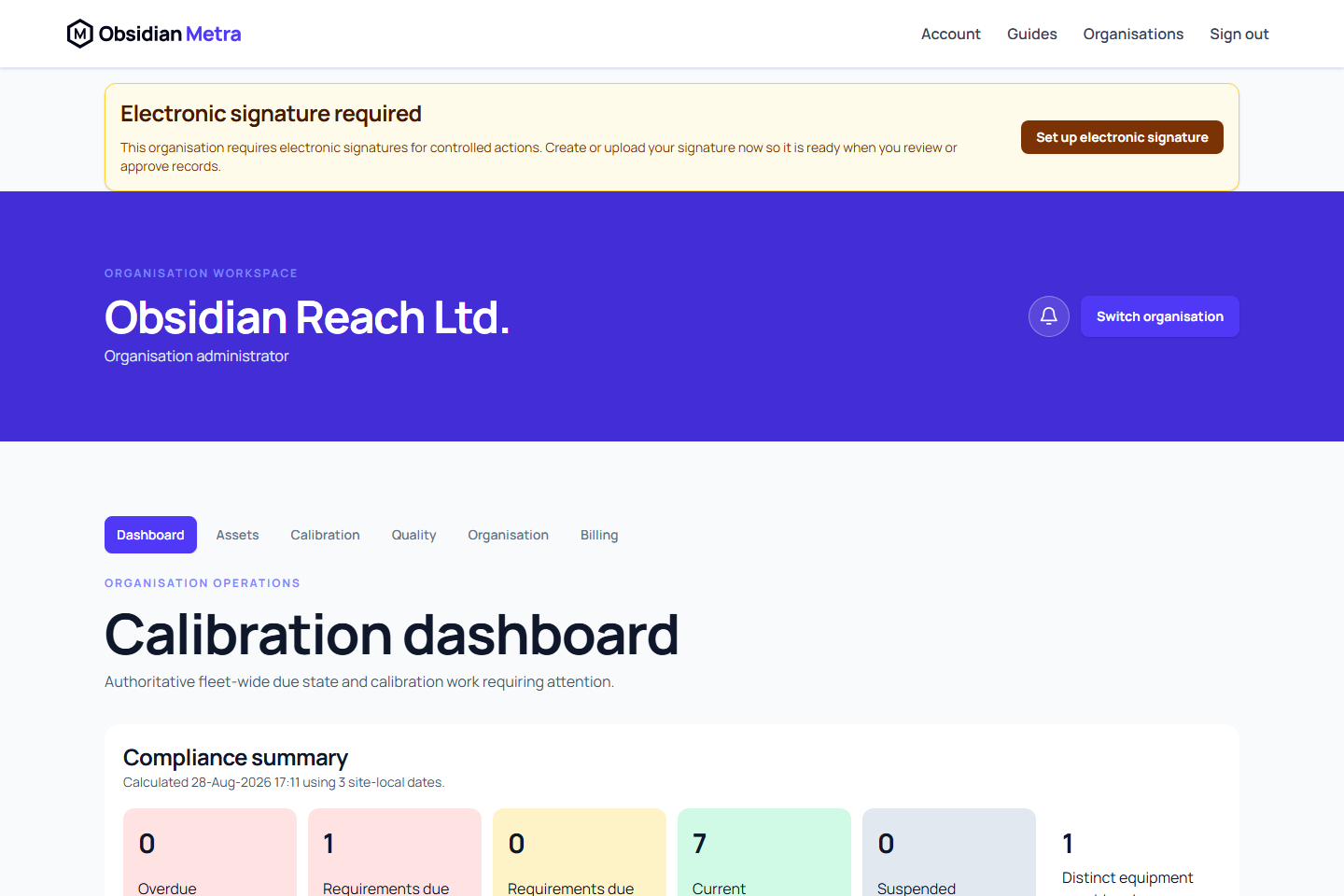
When signatures are required, members who do not yet have an active signature see a warning throughout that organisation. Follow Set up electronic signature to open the personal signature workspace, then upload or draw a signature and confirm it. The warning clears after the signature becomes active.

Generated calibration certificate approval always requires an active signature revision, recent authentication, certificate-issue permission, and current technical authorisation. The exact signature image, printed signer details, statement, timestamp, and approved content hash are frozen into the issuance evidence.
Historical evidence always points to the revision originally applied, not the user's current image. Where a generated document supports signed evidence, it should display that revision with the printed name, role, UTC time, action, and verification reference.
Related guides
- Manage your electronic signature
- Record calibration work
- Create and submit a dossier
- Generate a calibration certificate
Confirming identity without losing your work
The signature panel checks the current authentication window before enabling signature consent. If it has expired, enter your current password in the panel and select Confirm identity. Your pending form stays open. This refreshes your own session and does not approve, sign or submit the record. Review the action, select the signature confirmation again, then submit explicitly. A rejected password leaves the pending action and your session in place so you can retry.
If the readiness check fails, use Retry readiness check. Permissions, separation of duties, current technical authorisation and the authentication window are still checked by the server at submission.
Review statements and current policy
Controlled approvals require an explicit independent review statement describing the exact revision and evidence you reviewed. A signature supplements that statement and follows the organisation's current signature policy. Optional policy does not create a new mandatory signature, while required policy cannot be bypassed by omitting the signature request.
Approval and rejection both record a review decision. When a rejection supports signing, the same current organisation signature policy applies; the retained statement describes the rejection rather than implying approval.
Use Calibration > Approvals inbox to find eligible review work. The backend rechecks permission, authorship, submission and version at approval; a previously received notification is not a guarantee that the action remains available.
Calibration review links retain the exact submitted event revision. If a submission has been replaced, its retained summary remains available and decision controls are unavailable. Open the current submission from the approvals inbox to review and decide on the latest evidence.