Use this guide if certificate upload, replacement, review, or download is not working. Start from the visible error, keep existing versions in place, and correct the event through the normal workflow.
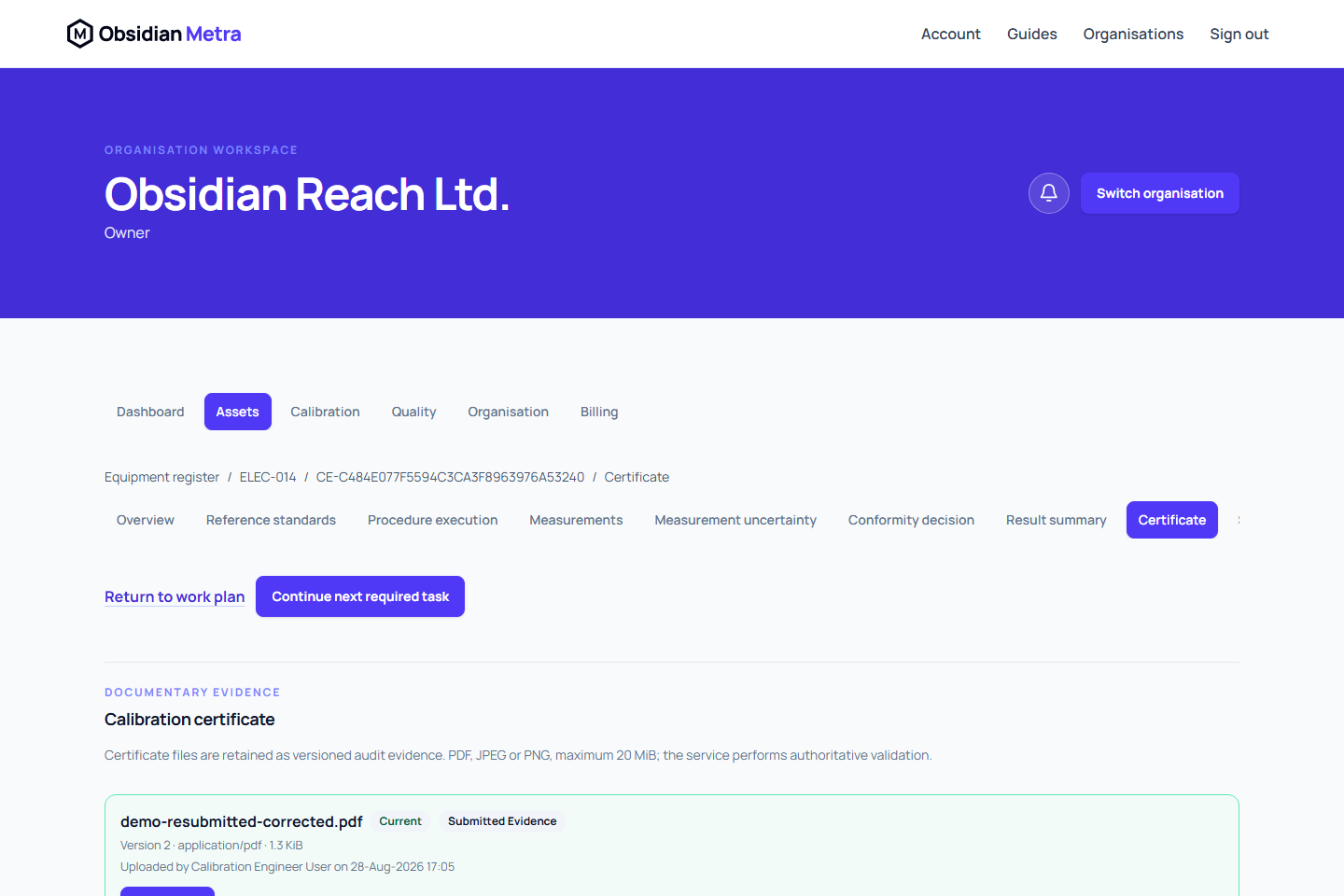
“Choose a certificate file”
Likely causes:
- No file was selected.
- The form lost context after leaving the page or closing/reopening it.
Safe fix:
- Open Upload calibration certificate or Replace calibration certificate again.
- Pick the correct file.
- Check the filename matches the file you expect.
- If replacing, keep the required Replacement reason.
“The selected file is larger than 20 MiB”
Likely cause: the file is above the 20 MiB limit.
Safe fix:
- Keep only the required certificate content in the file.
- Reduce the file size to PDF, JPEG, or PNG using your usual approved tool.
- Check that all required content is still readable (text, stamps, signatures, results, and traceability labels).
- Upload again.
Do not crop out required content just to pass size checks. If the official certificate cannot be reduced safely, ask a quality owner for guidance.
“Choose a PDF, JPEG or PNG file” or “file type or extension is unsupported”
Likely causes:
- File extension is not
.pdf,.jpg,.jpeg, or.png. - File extension does not match file contents.
- The file was renamed instead of converted.
- The file is corrupt or empty.
Safe fix:
- Open the file in a trusted viewer.
- Confirm it opens correctly.
- Re-export in a supported format.
- Keep the extension aligned with the real format.
- Upload again.
Renaming a file does not change its content. The system validates both extension and file data.
Upload or Replace action is unavailable
Likely causes:
- Your role does not include certificate upload/replace permission.
- The event is assigned to someone else and you do not have broader access.
- The event is waiting for approval, so the certificate is frozen.
- The event is cancelled.
- A certificate already exists, so this should be a replace action.
Safe fix:
- Confirm the selected organisation and the correct equipment event.
- Check event status and assignment.
- For
draft/rejected, ask the assigned user or an owner/quality manager to upload/replace. - For
awaiting_approval, ask the reviewer to reject if the frozen certificate is wrong. Then reopen, replace, and submit again. - For
approved,superseded,voided, use Replace only with the right permission and a documented reason. - Do not modify
cancelledevents. Create a new event when new calibration work is needed.
See Calibration event status reference for status-specific actions.
Upload is blocked because the equipment is unassigned
Likely cause: certificate actions use the equipment’s current site context, but the item is in the rotation pool.
Safe fix:
- Confirm where the equipment was installed when the work happened.
- Update the equipment movement to the correct site if needed.
- Use accurate effective date, client, site, location, and reason.
- Return to the event and retry.
Do not move equipment to a fake site just to pass this validation.
“Certificate evidence changed elsewhere”
Likely cause: another user replaced or updated the certificate after you opened the form.
Safe fix:
- Keep your selected file and replacement reason.
- Refresh certificate history.
- Review the current active version.
- Open Replace against the current version and submit with a correct reason.
Do not repeatedly submit against an outdated version.
Event cannot be submitted or approved because certificate is missing
Likely causes:
- No current certificate is attached.
- Draft upload succeeded, but file upload failed.
- The attached certificate changed after draft creation.
- Certificate history did not load, so reviewer cannot verify frozen evidence.
Safe fix:
- Open the saved event (do not create a duplicate).
- Confirm one version is marked
current. - Retry upload only when no current version exists.
- If rejected, reopen, replace if needed, and resubmit.
- If history does not load, choose Try again and wait for it to show before review.
- Have an independent reviewer verify the frozen file before approval.
Review is blocked until the submitted certificate can be loaded and matched to the frozen version.
Wrong certificate uploaded
Safe fix:
- Do not delete or overwrite the current file.
- Open certificate history.
- Use Replace on the current version when allowed.
- Upload the correct file and add a clear replacement reason.
- Confirm the new version is
currentand the old version issuperseded.
All previous versions, checksum history, uploader/timestamps, and replacement reasons remain in audit history.
Generated certificate details are incomplete
Use Correct this beside each readiness finding:
- Organisation contact details opens the organisation address, email and telephone form.
- Missing customer or calibration location opens Result summary for the same calibration event.
- Missing site or location address opens Sites and locations.
- Incomplete procedure execution opens Procedure execution for the same calibration event.
Work for and the other result-summary fields are editable only on a draft you are authorised to update. An approved example is read-only: its historical evidence cannot be overwritten. For practice with dummy data, choose the guided draft calibration instead of an approved example. A read-only summary explains the status and links back to the equipment’s calibrations.
Save the correction, then return to the event's Certificate task to refresh readiness. Approved work retains its original evidence; use the controlled amendment workflow when a correction to approved work is needed.
If a link opens a not-found page, keep the full page URL and the error reference for support. Do not create a replacement event just to work around a navigation problem.
A generated certificate remains pending render
pending_render means the frozen certificate revision is saved and queued or being generated. It does not confirm that generation has started. Delayed starts and interrupted generation are recovered automatically. This state alone is not a failure and does not have a fixed completion-time guarantee.
- Refresh after a short wait.
- Do not repeat approval or create a second event.
- Wait for
issuedorrender_failed. - Use Retry render only when
render_failedis shown and allowed. - Escalate if
pending_rendercontinues for longer than normal.
The app can recover interrupted generation. Only an issued file is official. Temporary failed render files are cleaned up automatically.
Recovery and temporary-file cleanup are separate from certificate approval. A cleanup delay does not authorise replacing approved evidence. When escalating a long wait, include the certificate revision, visible status and the time first observed so the service operator can check processing and recovery without repeating your approval.
A delay in reminders or another download does not prove this certificate has failed. Check this revision's own status before using a retry action.
Old certificate still appears after replacement
This is expected. Replacements create a new version; older files stay for traceability.
- Check the new file is marked
current. - Check the old file is marked
superseded. - Use Audit metadata to confirm supersession details.
- Continue with the current version for submission/review.
Certificate download fails
Likely causes:
- No download permission.
- Wrong organisation/session context.
- Certificate belongs to another organisation.
- Checksum/size validation fails.
- Temporary platform or storage issue.
Safe fix:
- Confirm you are signed in to the correct organisation.
- Refresh and retry Download.
- Ask an owner/quality manager to confirm download permission.
- Try another retained version to isolate if it is one file or all files.
- If one file keeps failing, stop and escalate as an evidence-integrity issue.
Do not replace a certificate just to get a passing download.
Escalate safely
Escalate when:
- A valid file is repeatedly rejected.
- Assignment history appears incorrect and cannot be changed through normal steps.
- Certificate history never loads.
- The same file repeatedly fails download.
Include in escalation:
- organisation name
- equipment ID
- calibration event number
- certificate file name/version
- event status
- exact error text and timestamps
- whether issue is upload, replace, history, review, or download
Do not include passwords, access tokens, private storage paths, or certificate files in support messages.