Before interpreting schedule rows, ranges and work locations, read Accreditation and scopes.

Choose Import UKAS Schedule in Data Import or Accreditation profiles. This workflow imports your own organisation's UKAS calibration schedule PDF. Import requires Data Import permissions and accreditation management permission; creating sites or categories also requires the corresponding destination permissions.
Upload and recognise
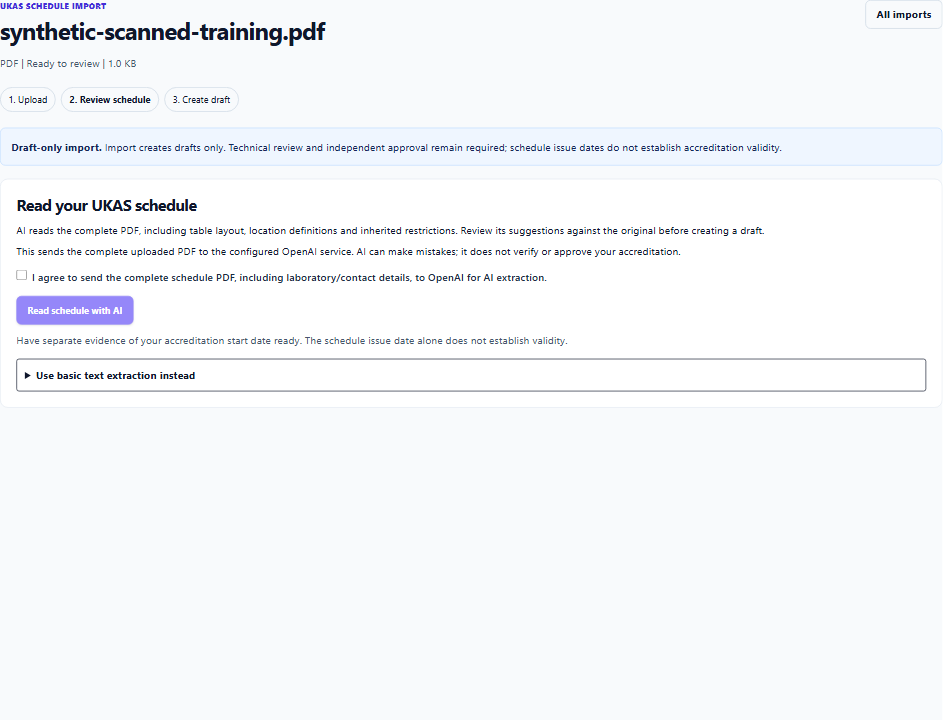
- Select the UKAS import type and upload the complete PDF. AI can read the PDF directly, including scanned pages; OCR is not a prerequisite.
- Review the sharing notice, then explicitly agree to send the complete PDF, including laboratory/contact details, to the configured OpenAI service. Choose Read schedule with AI. Metra interprets all pages, table layout and inherited restrictions and loads proposals for review. Nothing is created at this stage.
- Inspect the recognised laboratory name, number, scheme, issue label, date and page coverage. Open View original schedule to compare the source. Recognition is document extraction, not a live accreditation status check.
- Confirm the laboratory belongs to the selected organisation. Record evidence explaining identity differences. Do not import a supplier's scope as your own authority.
- Supply the separately evidenced accreditation validity date and evidence. The schedule issue date is not a validity date.
Your deployment administrator configures IMPORT_OPENAI_MODEL and OPENAI_API_KEY on the backend for all import AI assistance, including UKAS extraction, with no separate enable switch. If unavailable or unsuccessful, you can retry or deliberately select Use basic text extraction instead. Basic extraction is less capable with complex tables; scanned pages may need OCR for that fallback. Metra never silently switches methods. Reopening an import restores your saved review without requesting AI. Reading it again with AI keeps your scope, exclusions and review explanations. Confirm laboratory identity and complete-source coverage again after comparing the new interpretation.
Read AI usage and data handling for an overview of PDF sharing, review requirements and provider data controls.
Review scope and useful setup
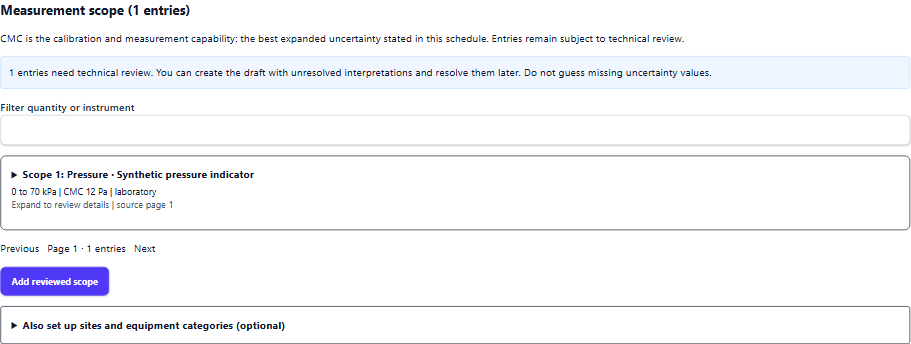
Check the document location legend first. For schedules that define P as the primary laboratory and S as on-site/external calibration, keep those meanings; S does not represent a physical site to create. Codes are interpreted from the particular schedule, not a universal letter lookup. Preserve restrictions inherited from headings, notes, methods and location definitions.
AI warnings and unresolved source entries remain visible. Correct each unparsed entry with its source page and wording, or explicitly exclude it and explain why. Never infer a missing CMC or accreditation restriction.
The scope cards show each instrument, range, CMC and source page. Filter by quantity or instrument, then expand a card to inspect or correct its details, including range bounds, discrete points, pressure medium/reference, method, location, coverage factor and linked conditions. The review shows how many entries still need technical review; unresolved interpretations can remain unresolved in the imported draft.
Range and CMC units are independent. For example, a liquid-volume range can use mL while its CMC uses microlitres. Percentage-of-measurand is different from %RH. Celsius uncertainty is a temperature difference. Metra's backend performs compatible-unit validation and calculations.
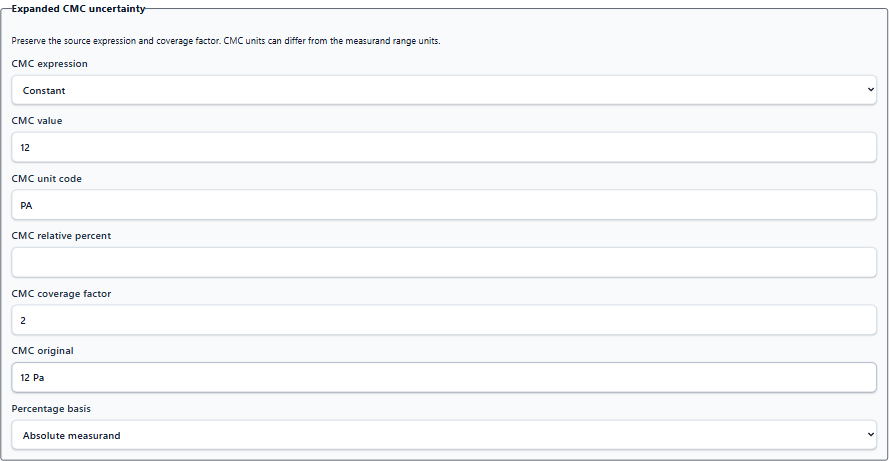
Keep an unresolved CMC unresolved when the schedule gives a range without a variation rule. Do not invent interpolation or use the smallest uncertainty. The imported scope requires independent technical review before it can support an accredited claim.
Use Also set up sites and equipment categories (optional) to choose physical laboratory sites and their timezones. Existing site and procedure references are optional advanced links and can be completed during technical review after import. Customer-site applicability does not create a physical site. Add selected equipment categories when needed; the schedule does not create equipment assets, calibration intervals, complete procedures or uncertainty budgets.
Record a reason for every excluded scope entry and confirm that you reviewed the complete source. Retain original source wording and page references when correcting proposals.
Understand the scope fields
Scope review uses the same fields and contextual help as manual accreditation profiles. Use the ? beside a field label with the pointer or keyboard focus for an explanation. See Describe a scope manually for boundary examples, work-location distinctions and CMC field definitions.
Check numeric range limits separately from Lower boundary and Upper boundary inclusion. Keep Not established when inclusion or work location is unknown. Instrument describes the type or family covered by the scope. Additional measured outputs have their own CMC; linked conditions describe operating constraints.
For imported entries, retain the original wording and page references in the source section. Page numbers refer to the uploaded PDF. Correcting source references does not remove the need to check the complete schedule or record reasons for exclusions.
Validate and create drafts
Choose Save review and check summary. Any edit invalidates that summary, so check it again after making changes. Complete any highlighted review items, then review the laboratory, scope and supporting setup counts. Select the confirmation checkbox and choose Create draft setup. Metra creates selected setup atomically and links the execution results to the created records. Retrying an execution must recover its existing result.
Import confirmation authorises the proposed writes. It does not approve the accreditation profile, activate scope or verify current UKAS status. Open the resulting draft and complete the ordinary independent technical review, mark, validity and approval workflows. Historical certificates retain their frozen evidence.
In Accreditation profiles, choose Revise profile and scope to correct an imported interpretation. Review the structured scope controls, mark supported interpretations reviewed, and explicitly confirm that source restrictions are mapped to required work evidence. Supply the approved mark revision and save a new draft revision. The original remains intact; submit the new draft for independent approval after review.
For a replacement issue, expand Replace an earlier schedule or link an accreditation mark (optional) and enter the previous profile identifier and inspect the revision comparison before execution. Source removals belong to a new draft; they do not delete prior approved evidence.
Shared measurement catalogue
Measurement, reference-standard, procedure, uncertainty-budget and scope editors use the same backend quantity catalogue. It includes temperature, pressure, voltage, current, resistance, frequency, relative humidity, length, mass, liquid volume, time interval, force, torque, volumetric flow, rotational speed and plane angle. Choose a quantity first to see compatible units. Existing unmapped quantities remain visible and require a reviewed mapping before new use.
Actual calibration measurements can record instrument, method, medium, pressure reference, work location and observed conditions. Supply these from performed-work evidence so restricted accredited scope can be assessed; missing conditions cannot establish an accredited claim.
Use a shared group key for paired outputs such as humidity and temperature measured together. Record restriction evidence for matters such as suitable customer premises and completed contract review. A group label alone does not establish matching conditions or satisfy a restriction.
Related guides
UKAS interpretation references
UKAS LAB 45 explains location tables, CMC expressions, units and restrictions. Always use the definitions and limitations printed in the uploaded schedule. UKAS digital schedules are being introduced alongside PDFs; retain the original issue and source evidence.
If AI reading takes time or fails
Reading the PDF can take up to two minutes. Keep the page open; Metra shows elapsed time and prevents duplicate requests. A timeout or AI service failure keeps your review details and lets you retry with the latest import status. Before an AI review has been created, you can also choose basic text extraction. These errors do not mean another person changed your schedule.
If Metra reports that the import changed in another window, reload before continuing. If AI suggestions are ready but import status cannot be refreshed, the suggestions remain visible; reload before saving or retrying.
If Metra cannot use the returned schedule, your PDF and saved review remain available. This can mean AI reading stopped early or the returned details did not pass source checks. Retry once; if it repeats, report the time and error to your administrator so they can check the server diagnostic. You do not need to upload the same PDF again.
If AI cannot support a location with matching source quotations, Metra withholds that location from site suggestions, keeps reliable fields in affected scopes, and leaves their unverified work location blank. The source pages appear as unresolved review items. Check the location legend and affected scope against the PDF, then correct the entries or explicitly exclude them with a reason. No site is suggested from the unverified location.
For development troubleshooting, an administrator can temporarily enable raw AI response logging. These logs may contain schedule and contact details and must be restricted to development, then disabled and removed after debugging. The normal user-facing error remains sanitised.
An unresolved quotation that does not match the AI transcription is replaced by its full source page for review. This preserves the review obligation without treating altered wording as verified evidence. Check every unresolved item against the original PDF; successful AI reading does not mean all scope rows were extracted.
Complete a partial extraction
AI and OCR can leave gaps. Metra keeps supported information in editable setup fields and leaves uncertain fields blank, with reasons for review. A partial reading is a starting point, not evidence that the complete schedule has been interpreted correctly.
Correct the laboratory identity and issue details against the original PDF. Expand each scope to edit its quantity, units, ranges, CMC, conditions, work location and schedule location codes. You can add or remove conditions and source references. Under Additional measured outputs, edit paired outputs such as temperature and humidity, each with its own range and CMC; add missing outputs or remove incorrect ones. Use Edit source entry as a scope for an unresolved quotation; its page and wording are retained while you fill in the interpretation. Optional site and equipment category proposals can also be edited or removed.
Save the review with unknown fields blank and reopen it to continue. Required setup fields must be completed before creating a draft, and technical approval still requires a complete, supported interpretation. If you exclude an entry, record why; use Undo exclusion to reconsider it. Reading the PDF again keeps your existing edits. Do not guess missing information to make an import pass validation.
Progress and recovery
AI reading runs in the background after your explicit consent. You can leave the page and reopen this import later; status updates automatically while it is open. Saved review information is retained. Save manual edits before leaving: unsaved edits trigger a warning. If reading fails, the PDF and saved review remain available for retry or manual extraction.