Summary totals cover the organisation’s due requirements. The work queue shows individual requirements under its own filters; work orders group work and can also contain manually added items. Compare the same organisation, dates and filters before expecting counts to match.
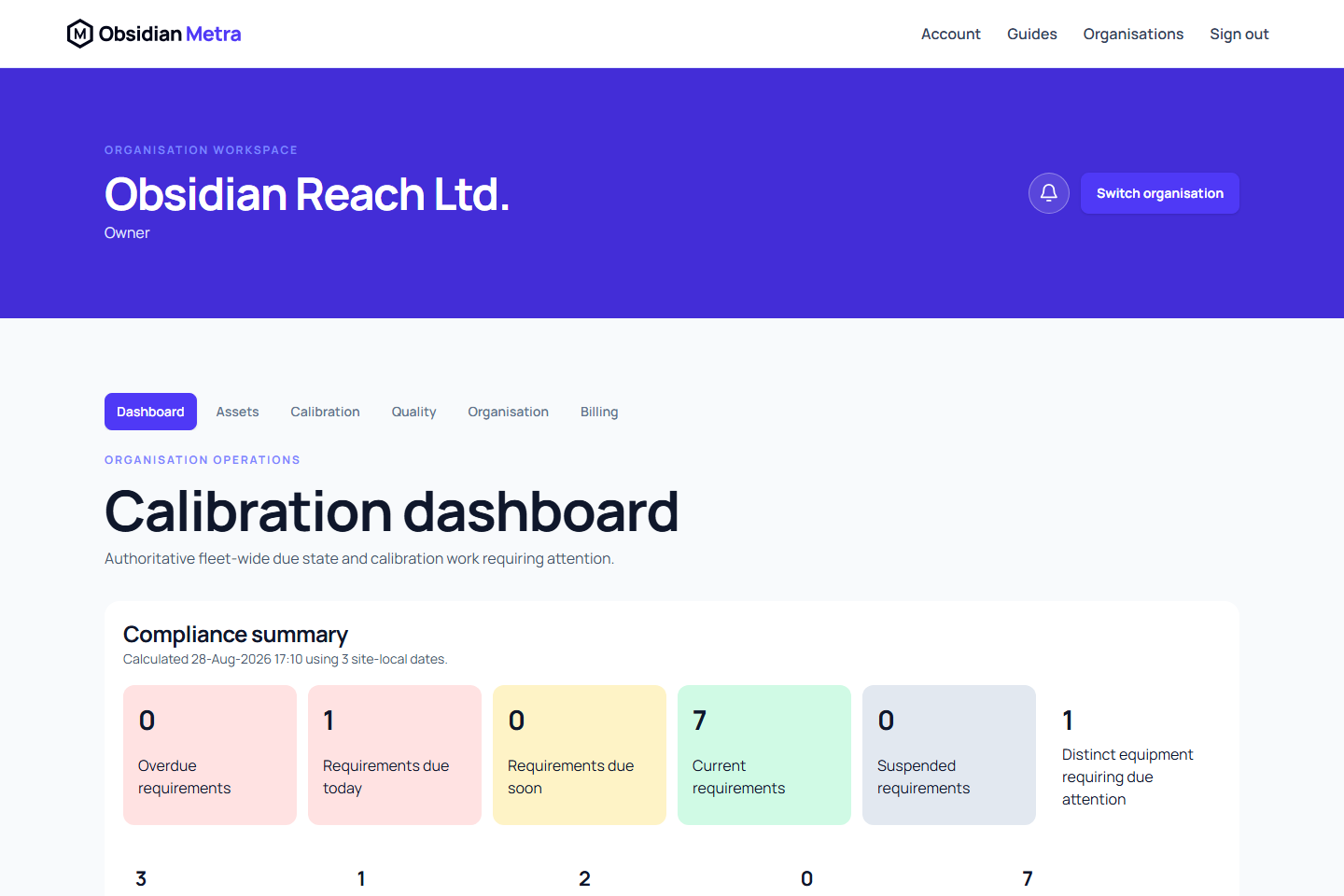
The Calibration dashboard is the organisation's main view of due calibration work. It presents Metra-calculated compliance counts and a paginated Requirement work queue.
Before you begin
Open the correct organisation and select Dashboard.
All five customer-facing roles normally have dashboard access. Each section also requires permission to read its underlying records. A user may therefore see fewer linked indicators or filter options than another user in the same organisation.
Navigate the dashboard
The page heading is followed by separate summary and work-queue sections. Summary cards link to relevant filtered views where you have permission. Filter controls and their action buttons are grouped together above the queue.
On a narrow screen, cards and filters stack to fit the available space. Queue rows display their field labels so equipment, due status and available actions remain identifiable. Page actions elsewhere in the organisation workspace wrap below the heading when space is limited.
Read the compliance summary
The Compliance summary shows counts for:
- Overdue requirements
- Requirements due today
- Requirements due soon
- Schedule current
- Suspended requirements
- Distinct equipment requiring due attention
Requirement counts and distinct-equipment counts answer different questions. One equipment item can have several requirements, so do not treat them as interchangeable.
Summary tiles use a uniform neutral outline. Read the status label, count and background colour together. Select a due-state card to open the dashboard with that filter. Depending on your permissions, the summary can also link to active out-of-tolerance investigations, quarantined equipment, work awaiting review, rejected calibration work, and work approved in the last 30 days.
The timestamp and site-local date count show the context used for this snapshot. See Understand due status for the date rules.
Filter the requirement work queue
Use the available controls to narrow operational work:
- Enter Search equipment or requirements when looking for an asset or requirement name.
- Select a Due status.
- Narrow by Client, Site, and Exact location when those controls are available.
- Select an Equipment category or Responsible member.
- Select Risk and Calibration type.
- Enter Due from and Due to dates when reviewing a date window.
- Choose an Order: operational priority, due date, risk, equipment asset ID, or site name.
- Select Apply filters.
The filters are reflected in the page URL, so a filtered view can be bookmarked. Use Clear filters to return to the default queue.
The default operational-priority order is overdue, due, due soon, current, then suspended. Within that priority, Metra applies a fixed ordering by due date, risk, asset ID, and record.
Work from a queue row
Each row identifies the equipment, requirement, due state, site context, responsible member, and latest effective work available to your permissions. Open the linked equipment or requirement to inspect the controlled record before acting.
Members with requirement-assignment permission may see Assign work or Take work. Assignment is a separate controlled action; use it only after confirming the intended worker and requirement.
Use Calibration work when a calibration event needs to be recorded, corrected, submitted, or reviewed.
Loading, empty, and error states
The summary and queue load independently.
- Loading compliance summary and Loading requirement work queue indicate in-progress requests.
- No calibration requirements match these filters is a valid empty result. Clear filters before concluding that no work exists.
- Use Retry summary or Retry work queue after a load failure.
- A reference-data error can remove or limit filter choices without changing the official requirement records.
Do not infer a zero count from an error or unavailable section.
Permissions and safe next steps
Dashboard access does not grant permission to update requirements, perform calibration work, or approve evidence. Follow the actions available for your current organisation membership.
- Understand due status
- Create a calibration requirement
- Calibration work
- Complete your organisation setup
Find unfinished and unassigned work
The default queue includes draft, active and suspended requirements. Drafts have no operational due-state claim and show their saved lifecycle and server-projected evidence currency. A future initial due date may be schedule-current while Initial evidence required remains outstanding. Open the requirement for its complete prerequisite and approved-evidence checks.
Due-state summary cards count active and suspended schedules. The queue total counts the rows matching its filters and can include drafts, so these totals need not match. Schedule current does not count proof of approved evidence or released equipment.
Unassigned requirements show Unassigned - review responsibility. Use Assign or Reassign when permitted, or open the requirement and coordinate with a colleague who has requirement-assignment permission. High or critical responsibility warnings remain visible without silently assigning a member or blocking access to historical evidence.