Every equipment item has one permanent verification code. The code is not the equipment record ID and does not change when the asset is renamed, moved, deployed or recalibrated.
Open the QR workspace
- Open Assets, then Equipment.
- Open the equipment record.
- Select QR verification.
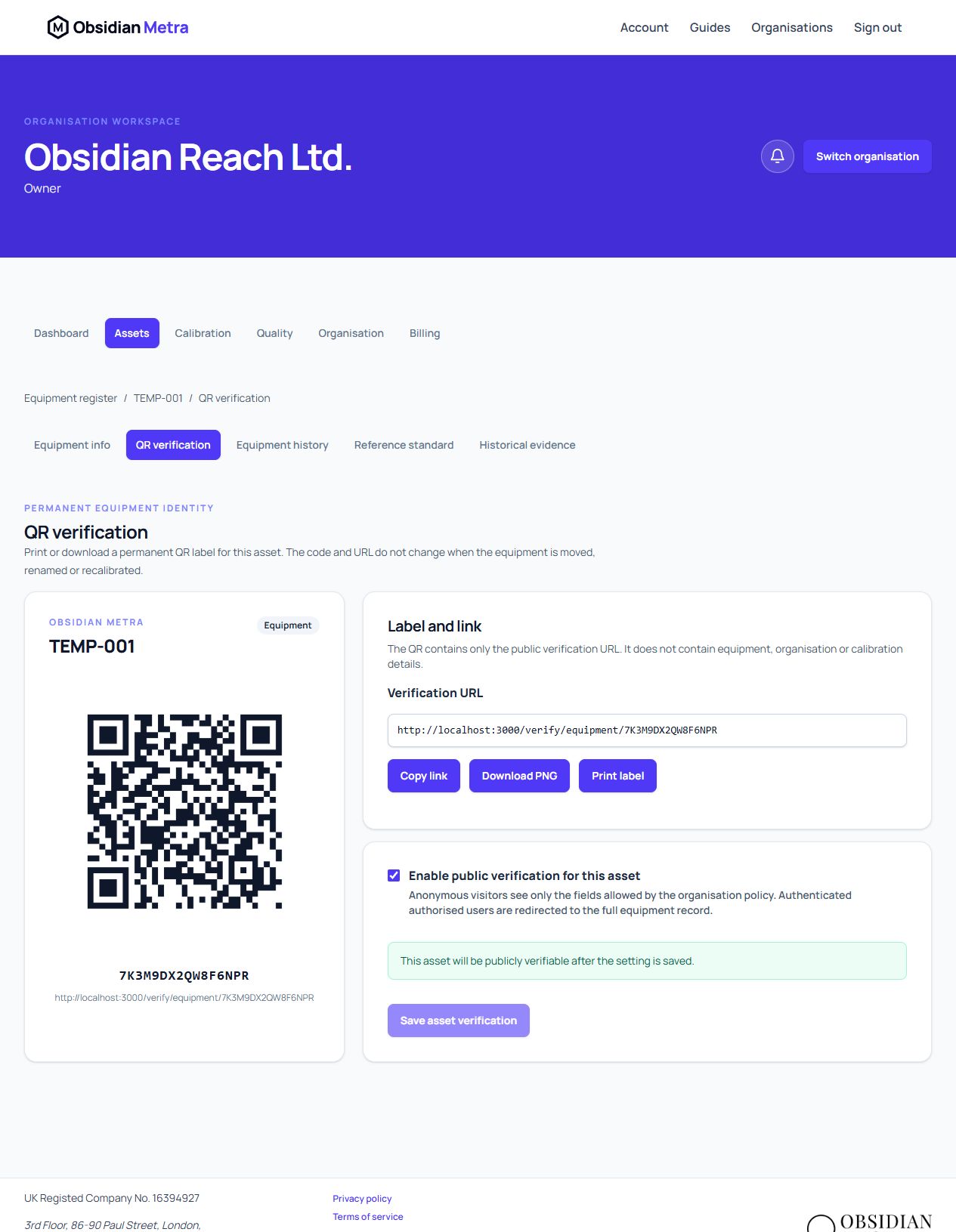
The workspace shows the permanent code, QR preview and complete verification URL. The QR contains only this URL; it does not embed the asset ID, serial number, organisation or calibration details.
Enable public verification
Select Enable public verification for this asset, then save. The page explains whether the organisation master switch is also enabled. Both settings must be active before an anonymous visitor can see the restricted verification summary.
You can still print the QR while public verification is disabled. An authorised signed-in member can use the same permanent code to reach the full equipment record.
Produce a label
- Use Copy link to place the verification URL on another label layout.
- Use Download PNG to save a high-resolution QR image.
- Use Print label for the compact layout containing the asset ID, QR, permanent code and text URL.
Keep the text URL on physical labels so the record remains reachable if the QR is damaged. Printed labels depend on preserving the public Metra hostname or maintaining a redirect if it changes.
Check the public result
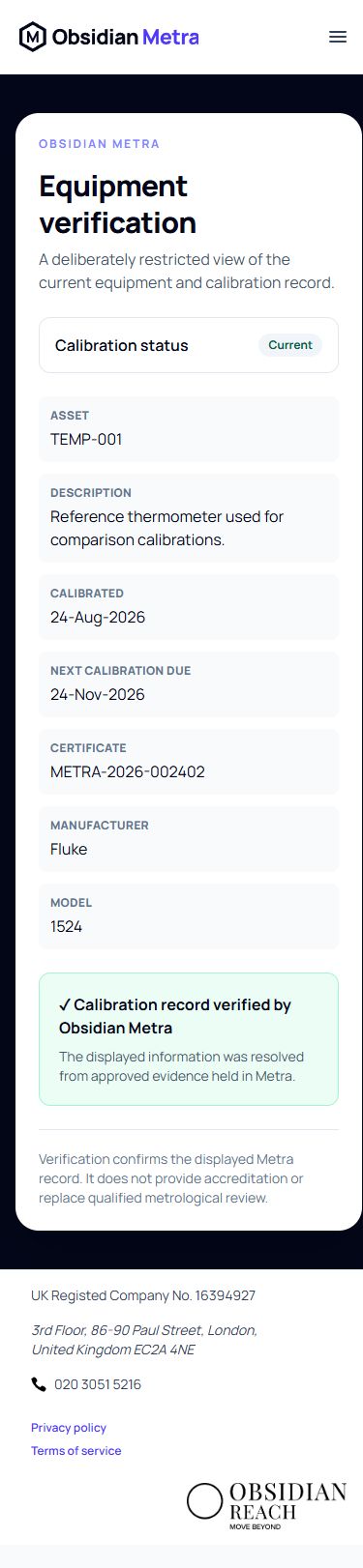
Sign out or scan the label on a device that is not signed in to Metra. When both public-verification controls are enabled, the restricted page shows only the organisation-approved fields and the Metra verification statement. An authorised signed-in member is redirected to the full equipment record instead.