For an explanation of accreditation, scope entries and CMCs, read Accreditation and scopes.
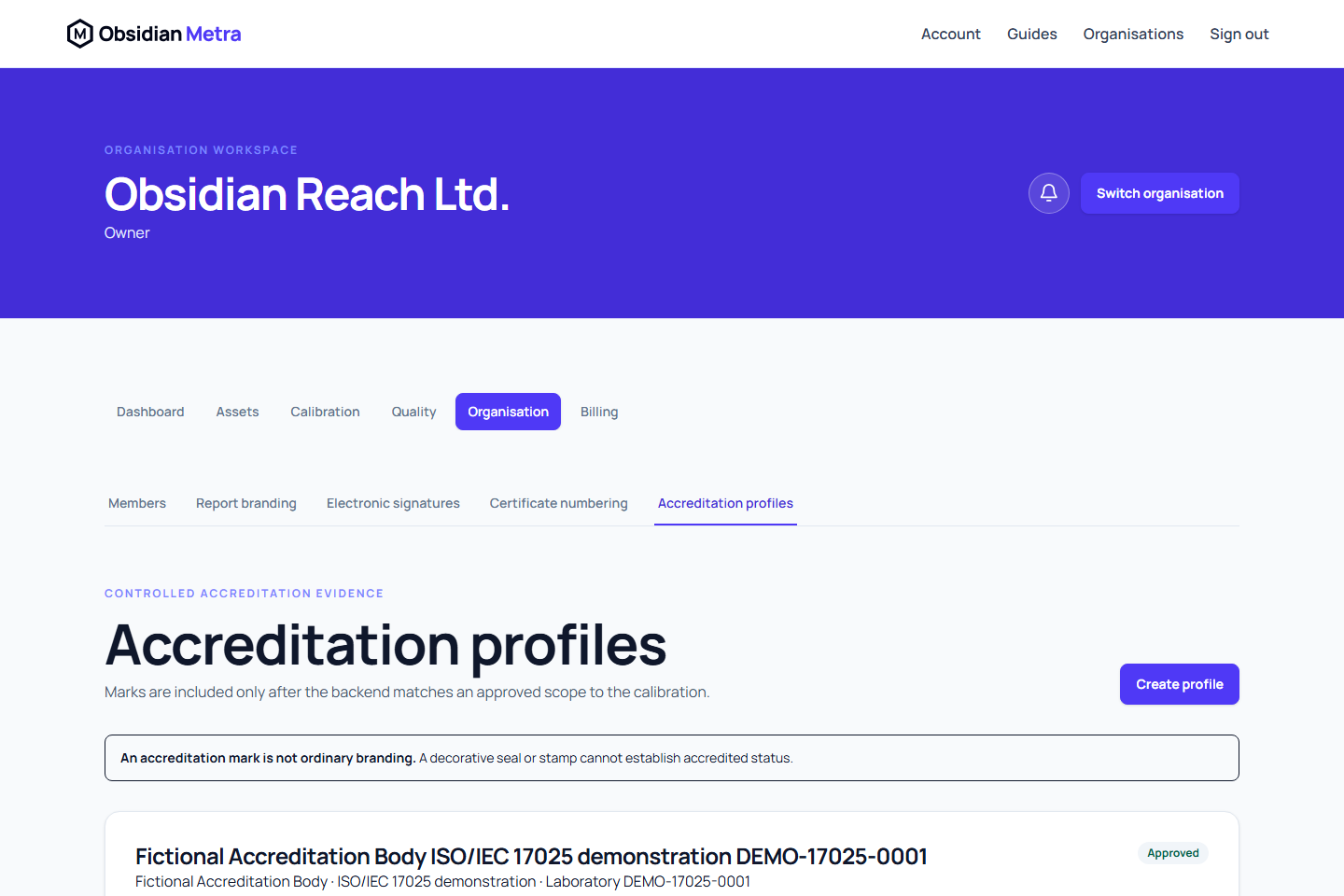
Accreditation profiles are controlled records, not decorative report branding. They identify the accreditation body, scheme, laboratory number, validity period, approved mark revision, required wording, sites, procedures, quantities, ranges, and other scope restrictions.
Create and approve a profile
For your own UKAS calibration schedule, Import UKAS Schedule creates a source-linked draft with reviewed scope and selected laboratory setup. See Import a UKAS calibration schedule. Imported scope retains CMCs, conditions and unresolved technical review; import cannot approve or activate accreditation.
- Open Organisation > Accreditation profiles.
- Select Create profile, enter the accreditation identity and validity details, and enter only claims your organisation is entitled to make.
- In Accreditation mark / seal, choose an existing active seal or select a PNG/JPEG image and Upload and select seal. Upload the complete authorised symbol including your laboratory number; Metra does not draw the number onto the image. Check its preview, filename and revision.
- Enter the first scope’s quantity, unit and range. Use Add scope for each additional capability, or Remove scope to remove an unwanted entry. Keep at least one scope, then select Create draft profile to save all entries together in the initial revision.
- Complete the technical interpretation and CMC details before submitting. If you saved unresolved details, use Revise profile and scope to finish them in a new draft revision, then submit it for independent review.
- Have an authorised quality user approve it.
One profile can contain multiple scope entries: do not create a separate profile for each measurement type or range. To change scopes later, use Revise profile and scope and save a new draft revision, preserving the previous revision and its history.
Read scopes and source evidence
Expand Scope and source evidence on a profile to see a card for each scope. The cards show its instrument, measurement range and unit, whether each boundary is included, work location, restrictions and technical review status. Not recorded means that the saved evidence does not establish a value; it must not be treated as approval or an unrestricted capability.
Open Technical details and linked records for the CMC (calibration and measurement capability), additional measured outputs, linked conditions, schedule location codes and saved site or procedure references. These references identify the exact saved links; they do not select a new revision automatically. Unresolved reasons remain visible on the scope card.
Open Source evidence for scope to read the original wording and expand page-labelled excerpts. Schedule evidence contains the source identity, review reasons, exclusions and retained schedule pages. Longer or nested evidence is collapsed until you expand it. Interpret location codes using the schedule’s own legend. Import checksums and internal references are grouped separately under Import traceability references.
Viewing evidence does not change it. To make corrections, use Revise profile and scope and save a new draft for review.
Describe a scope manually
Manual creation, UKAS import review and profile revision use the same structured scope fields:
- Instrument describes the instrument type or family, not an individual equipment asset. Record the method, medium and pressure reference where relevant.
- Range lower / Range upper are the numeric limits in the selected unit. Lower boundary / Upper boundary say whether each exact limit is included or excluded. Keep Not established when you do not know. Use Discrete point capability for a single calibrated point.
- Work location records laboratory, customer site or both. This is separate from linking a specific existing site. Schedule location codes can be recorded where relevant.
- Expanded CMC uncertainty records the expression, unit, coverage factor and any percentage basis. Add measured outputs for paired capabilities and linked conditions for operating constraints.
- Record restrictions and use the dropdowns to select optional existing sites or approved procedure revisions. Mark the interpretation reviewed and confirm the restrictions only after checking the technical evidence.
Use the ? beside a field label for an explanation. Hover over it or move keyboard focus to it to read the tooltip. The same field help is available when reviewing imported scopes and revising a profile.
Range and work location examples
For a range from 0 to 100, Included at the lower boundary includes exactly 0; Excluded starts above 0. The upper boundary is controlled separately. Not established preserves an unknown boundary; it does not mean that the value is excluded. A discrete point uses the same lower and upper numeric value.
Choose Laboratory, Customer site or Laboratory and customer site from the evidence for that scope. A work-location setting describes where the calibration can be performed; an optional site reference restricts it to a particular organisation site. Keep schedule codes as printed and check their meaning against that schedule's legend.
Complete the CMC details
CMC means calibration and measurement capability. These fields describe the scope's expanded uncertainty expression:
| Detail | What to enter |
|---|---|
| Expression | Constant, percentage of measurand, or percentage plus an absolute term. Leave unresolved if the expression cannot yet be mapped. |
| Absolute value | The constant uncertainty or the absolute part of a combined expression, in the CMC unit. |
| Relative percentage | Enter 0.1 for 0.1 percent, rather than the fraction 0.001. Used for percentage expressions. |
| Unit | A compatible unit for the uncertainty. It may differ from the unit used for the scope range. |
| Coverage factor | The positive factor stated in the supporting evidence. Do not assume a value when it is missing. |
| Percentage basis | Whether the percentage uses the magnitude of the measured value (absolute) or its signed value. Establish this from the evidence for percentage expressions. |
| Source expression | Preserve the supporting wording so the structured values can be checked against it. |
Choose the CMC unit from the same quantity’s unit catalogue used for measurement and range. The CMC unit can differ from the range unit. It remains required for percentage expressions because it defines the unit used when evaluating the uncertainty. Saved units that need catalogue mapping remain visible until you explicitly replace them.
The selected CMC expression controls the fields shown: Constant shows the absolute value and hides the relative percentage and percentage basis; Percentage of measurand shows the percentage and basis and hides the absolute value; Percentage plus absolute shows both terms. Unresolved keeps all partial details available for review. Coverage factor and source expression remain available throughout. Switching expressions preserves values you entered, so switching back restores them. The same controls apply to additional measured outputs and UKAS import review.
Additional measured outputs have their own quantity, range and CMC, such as temperature and humidity measured together. Linked conditions describe operating constraints, such as an ambient temperature range; they do not add another measured output.
The optional site and procedure dropdowns list records from this organisation. Select an active site or an approved procedure revision; record identifiers cannot be entered as free text. Leave optional links unselected when they do not apply. If a linked record is no longer available, its saved link remains visible until you explicitly replace or remove it. Refresh the options after creating or approving a missing record. An interpretation marked reviewed is still subject to the separate accreditation-profile approval workflow.
Quantity, unit and numeric range are required to create a manual profile. Other unknown details can remain unresolved in the draft; they are not silently guessed. A draft is not approved evidence and unresolved capabilities cannot establish accreditation eligibility. Manual creation does not invent PDF page references. Imported profiles keep their source wording and page references during revision.
Metra evaluates the performed date and frozen calibration evidence against the active profile. If the work is outside scope, the certificate remains unaccredited and explains why; the ordinary branding selector cannot override that decision.
Mark, seal, and stamp distinction
A report seal or stamp is an organisation-controlled decorative mark. An accreditation mark carries a formal claim and is usable only through an approved accreditation profile. Upload the image directly during profile creation or choose a seal already held in Report branding. Save image as lets you create revision 1 of a new seal or a new version of an existing seal with a replacement reason. Previous versions remain in history, and the profile keeps its selected version even when the seal is replaced later.
Existing seals require Report branding read permission; uploading requires Report branding manage permission. Ask an organisation administrator if these controls are unavailable. Images must be PNG or JPEG, no larger than 5 MiB or 4096 × 4096 pixels. Uploading does not approve the accreditation profile. A successfully uploaded seal remains available if profile creation fails or is cancelled, so it can be selected again without uploading another copy.
Related guides
When revising a profile, select an existing accreditation seal or upload a new version using the seal picker, just as when creating a profile. Check the laboratory number and preview before saving. Internal asset identifiers are not entered manually.
Resolve scope lines before submission
New profiles require you to enter the accreditation body and scheme from your evidence. Metra does not assume UKAS applies to your organisation. The mark remains a required part of the current accredited-output profile; it is separate from a decorative report seal.
Review each numbered scope line and its readiness before submitting. An unresolved line needs its technical interpretation, boundaries, restrictions and CMC completed, or an explicit reviewed exclusion. Use the repair action to open the revision editor. Retain the original scope evidence and explain exclusions; exclusion removes a capability from the claimed scope rather than approving it. A rejected submission preserves your entries and the existing approved revision.
Imported UKAS schedules retain their original PDF and source excerpts through the import evidence route. Manual profiles retain the structured scope and source wording; there is no general scope-document attachment uploader in this workflow. Do not infer that an absent attachment establishes a scope.
Check the work before issuance
Choose the organisation's approved profile on the requirement when our work is to be performed under that scope. This differs from an external provider's accreditation or traceability requirement. Provider documentary evidence does not authorise your organisation to use a mark.
The work's accreditation preflight checks the saved measurement range, context, reviewed scope and CMC before issuance. For example, a 200 °C point cannot be covered by a reviewed 0–100 °C scope. Resolve the scope or evidence through its controlled workflow, or retain an unaccredited outcome where permitted. Preflight is informative; final issuance repeats the checks against frozen evidence and cannot be overridden by a successful earlier preview.
Prepare scope before selecting a mark
You may save a draft profile or draft revision before selecting an accreditation mark. A valid controlled mark remains required at submission and issuance; saving a draft does not approve it. Add the mark later and complete technical review before submitting.
Each scope may link an existing Equipment category, Site and exact approved Procedure revision. These optional links narrow applicability; they do not replace quantity, unit, range, method, CMC, location or restrictions checks. A category link is separate from the equipment item's permanent owner. Retained links remain visible if a lookup is unavailable; retry the lookup before changing them.