Signature images use a short-lived secure transfer and are canonicalised before confirmation. A transfer does not activate a signature. Keep the page open through verification, then review and explicitly confirm the resulting candidate as usual.
Your signature belongs to your Metra account and can be reused across organisations. Metra treats it as an electronic signature image, not a cryptographic digital signature. Attribution comes from your authenticated identity, organisation membership, explicit action, exact signature revision, record hash, and audit timestamp.
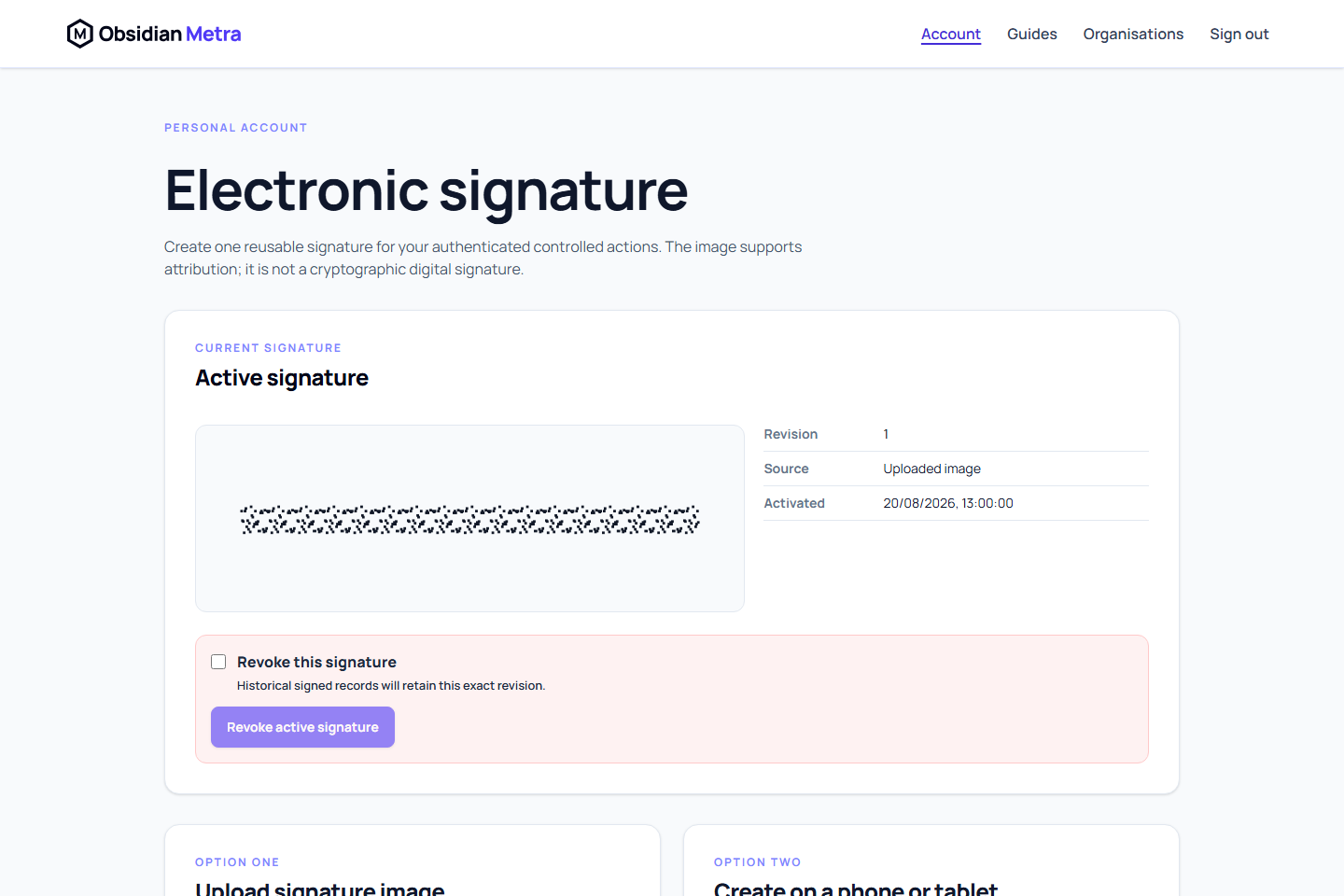
Upload an image
- Open Account > Electronic signature.
- Under Upload signature image, choose a PNG or JPEG no larger than 2 MiB or 2048 by 2048 pixels.
- Review the normalised candidate.
- Confirm it is your signature and authorise its use for actions you explicitly perform.
- Select Confirm and activate.
Draw on a phone or tablet
- Select Generate QR code.
- Scan the code and draw with a finger or stylus.
- Submit the candidate, return to the authenticated page, review it, and select Confirm and activate.
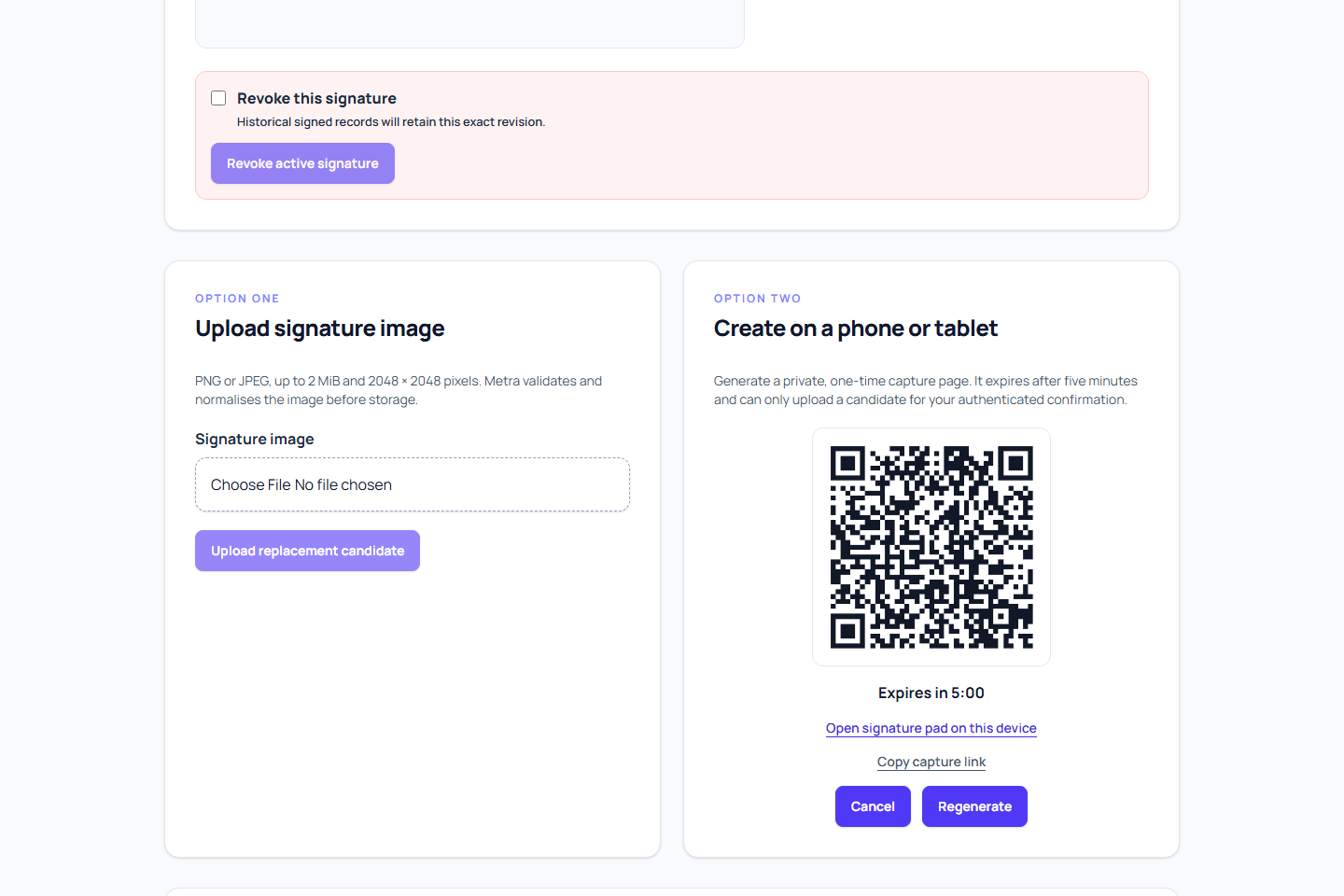
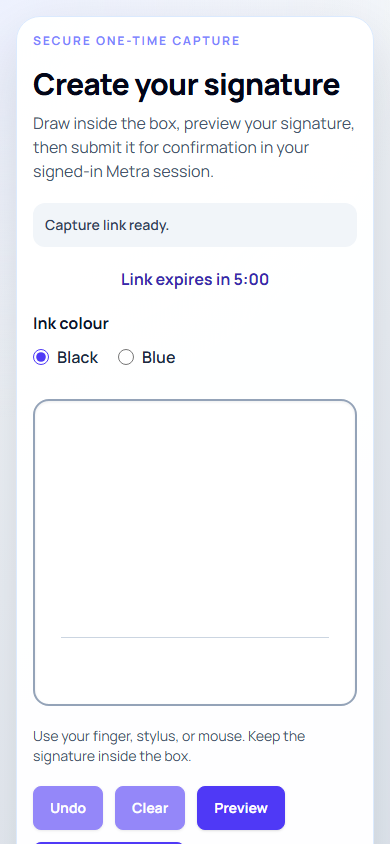
The one-time page expires after five minutes and cannot approve a record or activate the image. If you are already on mobile, use the discreet Open signature pad on this device link beneath the QR code. It contains the same short-lived fragment token and is also useful for testing without a second device.
Expired, consumed, and cancelled links cannot be reused. The public capture page does not disclose your name, email, organisation, or record information.
History, replacement, and revocation
Replacing a signature creates a fixed revision. Revoking removes the active choice but never changes historical signed records. Organisation administrators cannot manage another user's signature.