Use this guide when you cannot prepare, submit, approve, generate, or download an ISO 17025 dossier.
A submitted dossier is a frozen snapshot. If scope or source evidence changes, create a new revision instead of editing an approved one.
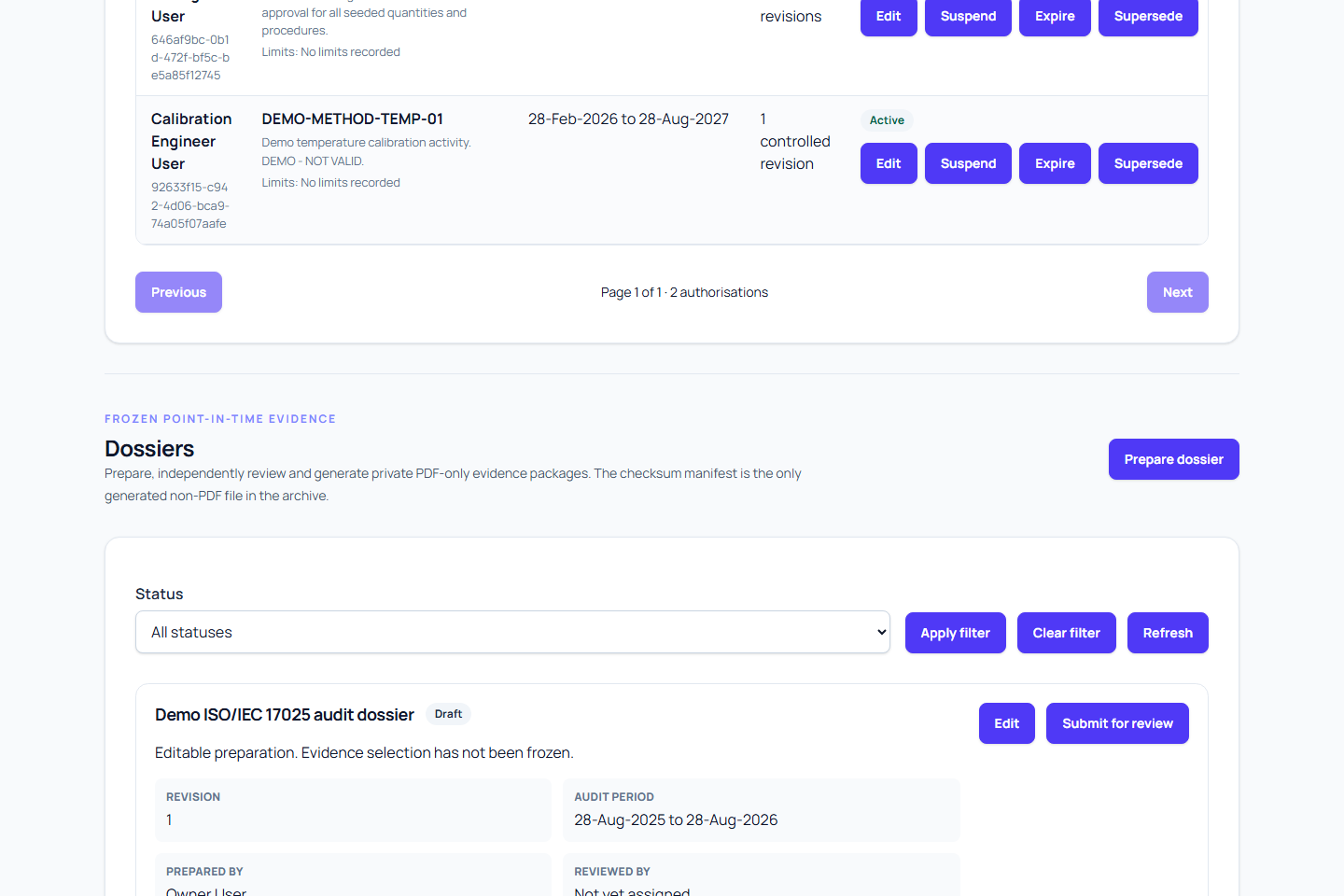
Prepare dossier is unavailable
Likely causes:
- Audit profile is not saved in the selected organisation.
- You do not have dossier creation permission.
- You are in the wrong organisation.
Safe fix:
- Open Readiness in the selected organisation.
- Save the Audit profile with the required title and scope.
- Return to Dossiers.
- Ask an owner or quality manager to confirm your permissions if it is still missing.
Draft will not save
| Symptom | Likely cause | Safe fix |
|---|---|---|
| Title or scope is missing | Dossier title or Scope summary is empty | Add a clear title and include activities, exclusions, and scope boundaries. |
| End date is before start date | Audit period is invalid | Enter an end date on or after the start date. |
| No site selected | No site chosen | Pick at least one owned site. |
| Site is rejected | The site is unavailable or belongs to another organisation | Select an active site in this organisation. |
| Evidence mode invalid | Wrong evidence mode selected | Use Final evidence only or Include all work. |
| “This dossier changed while you were reviewing it” | Someone else updated the draft | Refresh, then reapply your change only if still needed. |
Only the member who created a draft can edit that draft revision. If ownership or scope needs to change, create a new draft revision.
Expected sites are missing from scope
Likely causes:
- A client filter hides the site.
- Internal-site view is not enabled.
- The site belongs to a different organisation.
- The site is inactive.
- Set the correct client filter or enable internal sites.
- Confirm client-backed sites have client name/reference values.
- Confirm the site is active and belongs to the selected organisation.
- Fix site/client details through normal workflows if needed.
- Return to the draft and re-select the correct site.
Readiness has warnings or missing evidence
Likely causes:
- Missing evidence links.
- Evidence is still draft or not approved.
- Evidence is expired.
- Not applicable rationale is missing.
- Personnel authorisation is inactive.
- Open Review ISO 17025 audit readiness.
- Read every reason shown.
- Fix only after the scope decision is approved by the right role.
- Upload and independently approve required controlled PDF revisions.
- Refresh readiness before preparing or submitting.
Warnings do not mean automatic non-conformity. Do not mark topics as not applicable just to remove warnings.
The dossier cannot be submitted
Likely causes:
- Status is not
draft. - The draft is owned by another member.
- The revision changed.
- A selected site is no longer active/owned.
- Required source records are missing.
- Refresh and verify status/revision.
- Have the original preparer submit their own draft.
- Confirm selected sites, client context (if used), and date period.
- Fix source evidence through normal workflows.
- Save and submit again.
If it was already submitted, prepare a new revision.
Approve is unavailable
Likely causes:
- Wrong status.
- Trying to approve your own draft.
- Missing reviewer permission.
- Record version changed.
- Refresh dossier list.
- Confirm status is Ready for review.
- Ask a different authorised reviewer to approve.
- Reviewer must add a review statement before selecting Approve.
The preparer cannot approve their own dossier.
Generate package is unavailable or queueing fails
Likely causes:
- Status is not
approved. - Missing generate permission.
- Stale revision.
- There is already a generation in progress.
- Refresh and confirm status.
- Complete approval first if status is
ready_for_review. - Click Generate package once from
approved. - If already
generating, wait and refresh.
generating alone is not a failure.
The dossier stays in Generating
- Refresh periodically.
- Wait for
availableorfailed. - Do not submit duplicate generation requests.
- Escalate if it stays generating beyond expected time.
Healthy generation can resume if a worker is interrupted.
Recovery runs independently of download cleanup. If the wait continues, give the service operator the dossier reference, revision, visible status and observation times; do not prepare another revision solely to restart saved work. Normal cleanup does not remove the frozen source evidence or extend an archive's configured download lifetime.
Other background work can succeed while this request is delayed. Use this dossier's status and displayed failure code to decide the next action; avoid retrying an already available archive because another request failed.
Generation failed
Use the displayed failure code:
| Failure code | Meaning | Next step |
|---|---|---|
snapshot_missing | No usable frozen snapshot | Create and submit a new revision. |
snapshot_failed | Snapshot could not be processed | Refresh once, then escalate if it happens again. |
generation_failed | Required evidence could not be read/rendered | Correct missing or corrupt evidence, then create a new revision. |
archive_failed | Final ZIP assembly failed | Escalate with dossier reference and code. |
storage_write_failed | Package could not be saved for download | Resolve the storage problem, then use Retry generation when offered. |
For generation_failed, check linked controlled revisions and certificates are current, in scope, and match the required period and movement history.
Only storage_write_failed can use Retry generation against the same approved revision and frozen snapshot. Resolve the storage problem with the service operator first. This retains the existing approval and evidence selection; it does not edit the dossier. If the retry is already generating, monitor that request rather than repeating it.
Other failure codes require a new revision after the underlying problem is resolved. Recheck and independently approve its evidence through the normal workflow. An expired archive also requires a new revision.
Download ZIP is unavailable
Likely causes:
- Status is not
available. - File has expired.
- Missing download permission.
- Wrong organisation context.
- Confirm status and expiry.
- If failed, follow the failure-code guidance above. If expired, create a new revision.
- Confirm your organisation owns the dossier.
- Ask an owner or quality manager to verify download permission.
Download starts but fails
Likely causes:
- Session expired.
- File expired during download.
- Package integrity check failed.
- Temporary platform issue.
- Re-sign in and return to the same organisation.
- Refresh and confirm status is still
available. - Retry once.
Do not alter source evidence just to hide download issues.
The dossier is Expired
Generated dossier ZIP is available for 90 days.
After expiry, the derived ZIP is removed from active download, but these stay:
- dossier metadata
- frozen scope
- source record references
- controlled revision details
- checksums
- audit events
- Do not edit or re-generate this revision.
- Prepare a new revision with corrected scope and evidence.
- Submit, get independent approval, generate, download before expiry.
expired is terminal for that revision. A failed revision can return to generation only for an eligible storage_write_failed retry; other failures require a new revision.
Escalate safely
Escalate when:
- generation never leaves
generating; - failure code repeats (
snapshot,archive,storage); - downloaded package repeatedly fails.
Preparation errors remain visible in the dialog as:
- Reference with record ID
- Error message
Include:
- organisation name
- dossier title and revision
- status and reference
- failure code and warning text
- site scope and client context
- audit period
- time and action taken
Do not share passwords, private storage keys, or certificate files in support requests.