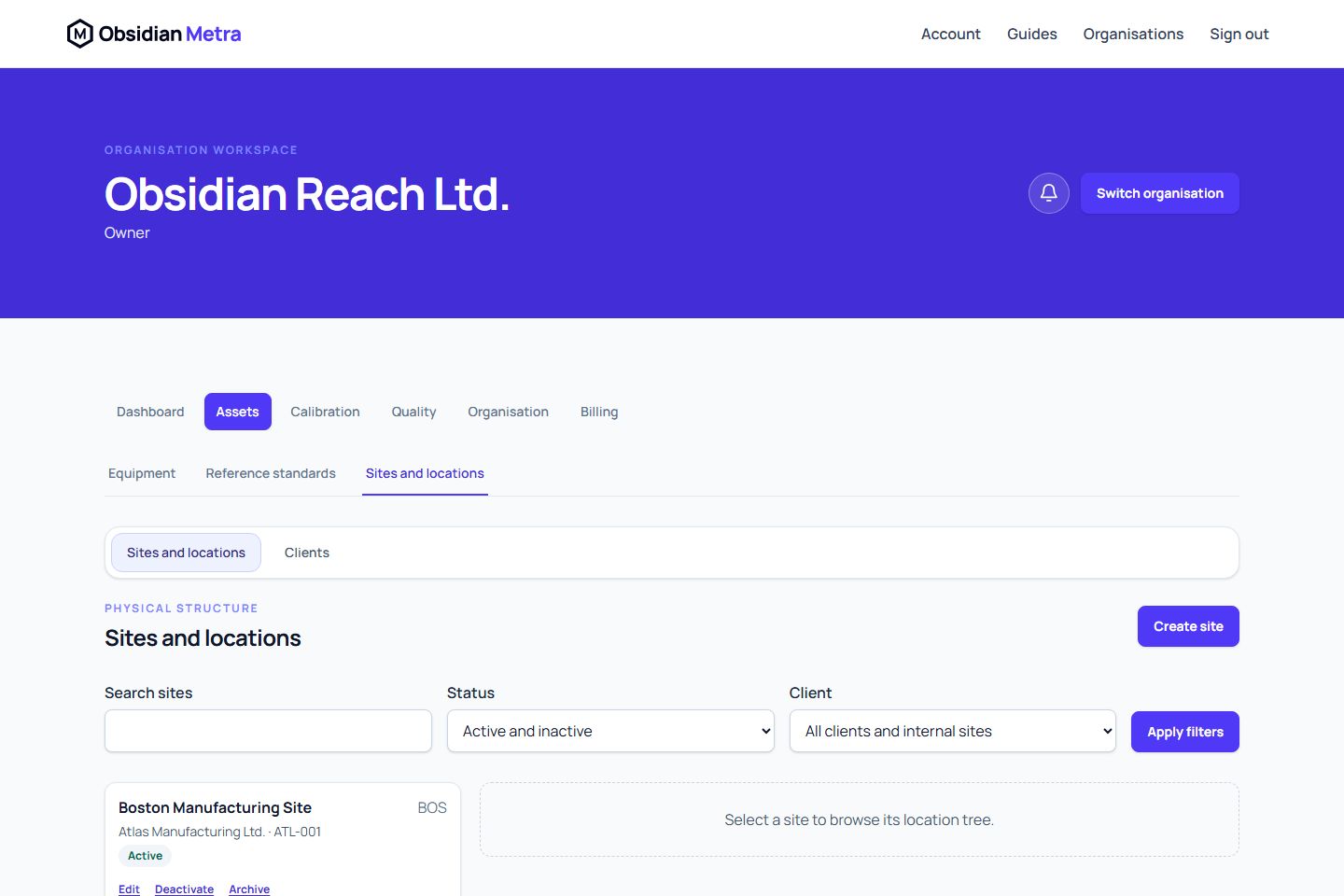
Sites identify facilities where equipment can be deployed. Locations add detail within a site, such as a building, floor, laboratory, room, cabinet, or bench.
Addresses used on certificates
Sites hold postal addresses. Each location can inherit its parent location's address, falling back to its site, or have its own complete address. Leave every location address field empty to inherit; enter a complete address when the actual place of work differs. Review the effective address before issuing certificates.
Calibration work can select any accessible registered location, including a customer location for on-site work. The customer's site and the actual calibration location are separate choices. A selected location does not itself establish accreditation eligibility.
Before you begin
You need access to Assets and permission to read sites. Creating or changing sites and locations requires the corresponding structure permissions.
Create the client first when the site belongs to a customer. Leave the client empty for one of your organisation's own facilities.
Plan the hierarchy before entering it. Locations cannot cross site or organisation boundaries, and moving a location later changes its current parent without erasing historical references.
Create a site
- Open the correct organisation.
- Select Assets.
- Select Sites and locations.
- Select Create site.
- Select a Client, or leave No client — internal site selected.
- Enter the required Name.
- Add a Code and Description when they help users identify the facility.
- Select the correct Timezone.
- Add address details when required.
- Select Save site.
The active site appears in the site list and can receive equipment assignments. Its timezone is used for site-local due dates and reminder evaluation, so verify it before operational work begins.
Review the saved postal address and description in the site list after saving. Location descriptions are shown in the hierarchy so similarly named rooms can be distinguished. Sites and locations is also available from organisation navigation; you do not need to open an equipment record to find it.
Add a root location
- Select the site in Sites and locations.
- Select Add root location.
- Enter the required Name.
- Add an optional Code and Description.
- Leave Parent location empty.
- Select Save location.
The location appears at the top level of that site's location tree.
The selected site must be active to add root or child locations. If it is inactive, activate the site first or ask a colleague with site-status permission to do so.
Add a child location
- Expand the location tree and find the intended parent.
- Select Add child beside that parent.
- Enter the location details.
- Confirm the selected Parent location.
- Select Save location.
The child appears beneath its parent. Repeat this process only as far as the hierarchy is useful for assignment, filtering, and audit evidence.
Edit or move a location
Equipment location selectors show the full available ancestor path, such as Building / Floor / Calibration room, to distinguish rooms with the same name. Only active operationally available locations can receive a new assignment. Existing unavailable locations remain visible as retained assignments.
Physical placement and containment are separate. Moving quarantined equipment to storage, another location, another site or the rotation pool does not clear its hold. Stop use can be recorded before equipment is physically moved. Use Quarantined across all sites in the equipment register to find contained equipment without a site, client or assignment filter hiding it.
- Find the location in the tree.
- Select Edit / move.
- Change its name, code, or description when you have location-update permission.
- Change Parent location when you have location-move permission.
- Select Save location.
Only active locations in the same site are offered as parents. When moving a location, its descendants and locations with inactive ancestors are excluded to prevent a cycle or unavailable parent chain. A retained parent remains visible for historical context when it is no longer selectable. The system validates the hierarchy again when you save. A move changes the current tree; it does not move the site itself or rewrite equipment deployment history.
Deactivate or reactivate structure
Use Deactivate when a site or location should stop receiving new operational assignments but may be used again. Use Activate to restore it when the structure is valid and available.
A location is operationally available only when it and its ancestors are active. Deactivating a parent therefore prevents new assignments to its descendants. Existing historical records remain available.
Archive safely
Archiving is a controlled end-of-life action, not a cleanup shortcut.
- Archived sites and locations remain in audit history.
- Handle non-archived child locations before archiving their parent.
- Confirm that equipment no longer needs a new assignment to the structure.
- Use Deactivate instead when the closure may be temporary.
Select Archive only after reviewing those effects and confirming the prompt. Archived structure is not restored through the ordinary user interface.
If setup fails
- A site requires a name and a valid IANA timezone.
- A country code, when supplied, must contain two letters.
- A new location requires an active selected site.
- A child or moved location requires a valid active parent in the same site.
- Missing buttons usually indicate that your membership lacks the required permission.
See Troubleshoot unavailable selections for missing sites, locations, and inactive ancestors, or Troubleshoot update conflicts after a concurrent structure change.
Next steps
Complete forms safely
Site addresses use searchable country names. Select United Kingdom to store the supported GB code. Changing the country search keeps the selected country visible. Sites, locations and clients open in keyboard-accessible dialogs; Escape and Cancel ask before discarding edits and are unavailable during submission. Navigation and tab closing also warn about unsaved changes. These warnings do not save your edits; save before closing the tab.
Field and internal work
Own and customer sites are labelled from their existing ownership relationship. Record private operational contact and access details using the site form. Contact disclosure on certificates is off by default; access notes stay out of certificates and public verification. See site contacts and access notes.
Describe field locations without changing equipment status
Set Location type to General, Storage, Vehicle, Transit, Quarantine or Controlled area as appropriate. Record a Location change reason when changing operational context such as type, name, description, code, address or parent location. This retains the previous context in audit history. A Quarantine label does not quarantine equipment, and moving to a General location does not release it. Use the controlled equipment lifecycle actions separately.
Site contact times use the site's IANA timezone. Keep private contact and access information in the site record. Authorised work-order members can open the Engineer job sheet to see the selected work site's contact, timezone and access notes. Access notes remain excluded from certificates and public verification.